A convincing retro scene comes from the relationship between geometry, textures, lighting, and camera presentation. Start with one material and a simple scene. Add each imperfection deliberately so you can see what it contributes.
01 Get one material working.
- Import CrowPSX and keep it at
Assets/CrowPSX. Use Unity 2022.3 LTS or newer with Built-in or URP. - Run
Tools > CrowPSX > Validate Installationand resolve the reported setup issues. - Create a material using
CrowPSX/Surface/Litefor a reduced feature set orCrowPSX/Surface/Defaultfor the fuller non-PBR workflow. - Assign a Base Texture and Base Color. Apply the material to a mesh with clearly visible triangles and move the camera around it.
For a workflow with normal maps, metallic response, or reflections, choose CrowPSX/Surface/PBR. PBR is an artistic option; you do not need it simply to produce a retro appearance.
02 Tune the geometry before the color.
Open Retro Geometry. Adjust Pixel Snap X/Y while moving the camera slowly. Look at the silhouette and nearby edges. Use the lowest strength that gives your scene the character you want.
Next, increase Affine Warp and watch a textured surface at an angle. This control reduces perspective-correct interpolation. Large triangles make the distortion more obvious, so mesh topology is part of the result.
If the near-camera motion becomes distracting, use Snap Fade Start/End. Judge the effect at the game's actual movement speed, rather than only in a still screenshot. In VR, use the separate snap and affine strength controls and test in the headset.
03 Make light and color work together.
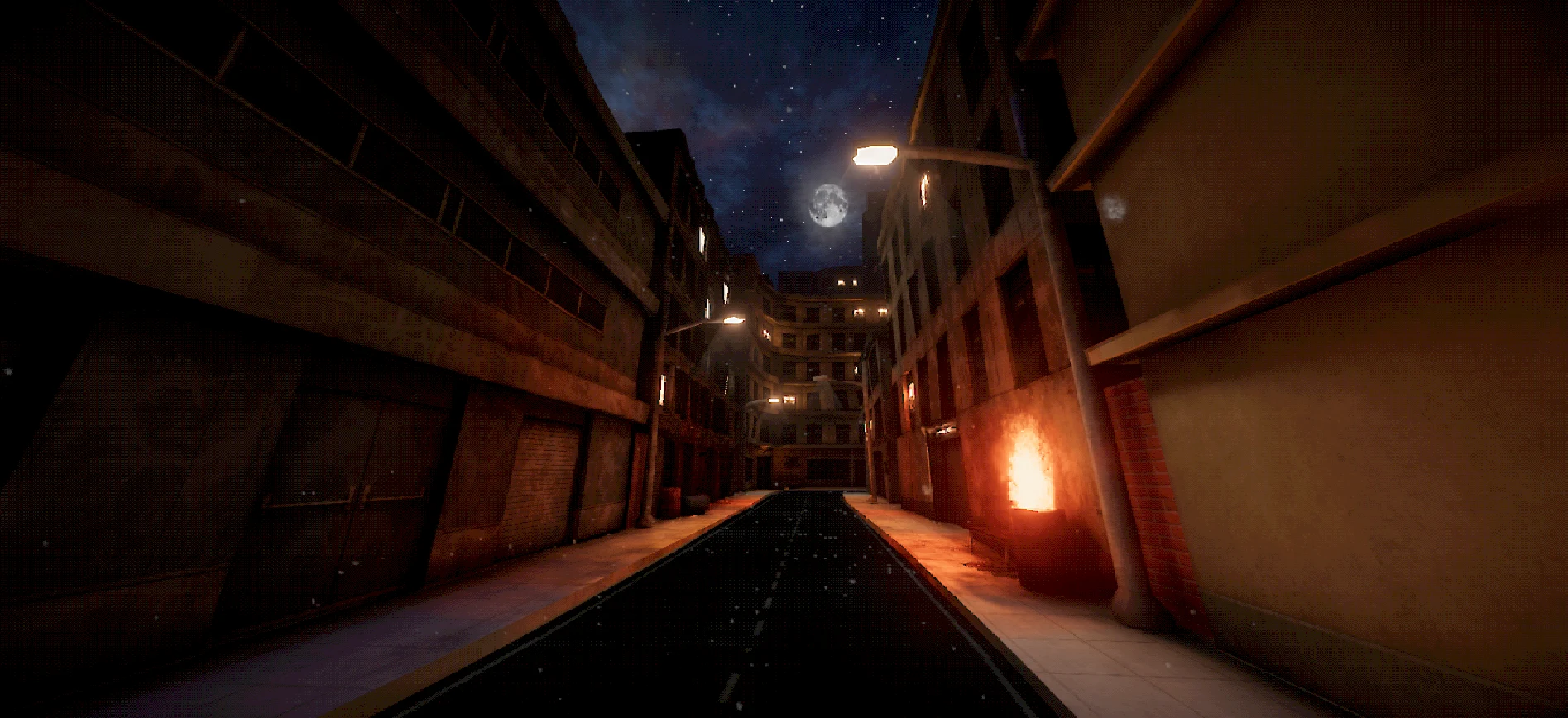
In Lighting, start with Vertex for a coarser appearance or Pixel for smoother per-pixel light. Adjust Lighting Steps to introduce bands. Use Final Posterize to reduce the completed lit result's color steps.
Change one control at a time. A dark wall can lose important shapes when lighting bands and posterization are both aggressive. Check an unlit corner, a midtone surface, and a bright light before applying the settings broadly.
For a lower output resolution, full-screen dithering, or CRT effects, add a camera post-processing solution that suits your render pipeline.
04 Carry the look through the world.
Foliage
Choose a CrowPSX/Nature variant and assign the albedo texture. Nature materials start in Cutout mode with Cull Off. In Nature Wind, pick a preset and choose an anchoring source that matches the mesh. Local Height suits plants with a ground-level pivot; authored weights can use Vertex Alpha, UV2 Y, or a Mask Texture.
Terrain
On the Terrain object, select a Custom material using CrowPSX/Terrain/PBR. The shader reads Unity TerrainLayers. Keep the bundled terrain helper shaders installed so Built-in add passes and distant basemaps remain available.
Sky and scene accents
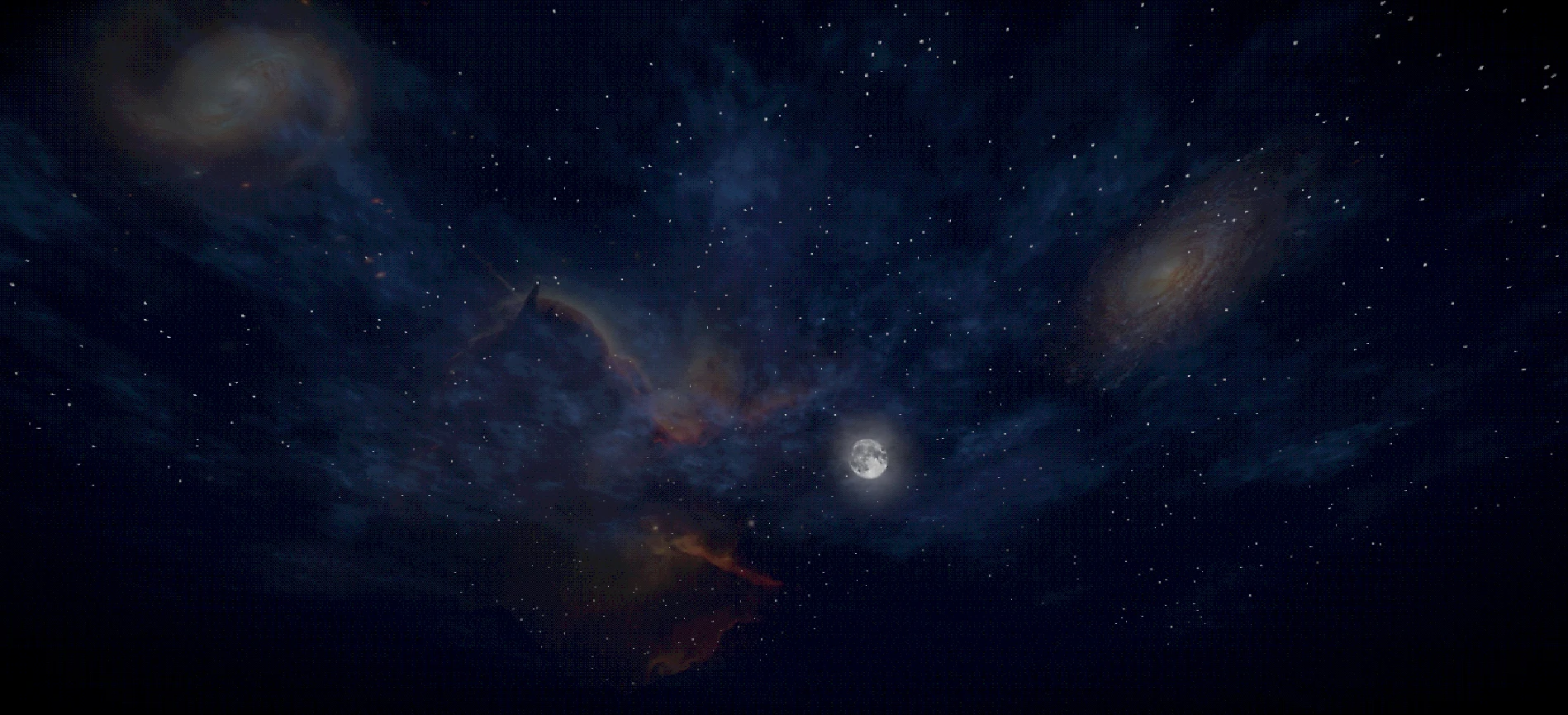
Assign CrowPSX/Skybox/Procedural under Lighting > Environment. Use its gradient, clouds, stars, and celestial controls to support the scene's palette. Add particles and depth-volume decals where they help the environment tell a story.
Under URP, depth-volume decals require the CrowPSX Depth Volume renderer feature. Optional mesh outlines need the CrowPSX Outline Feature or camera support component. Grab Distortion needs Opaque Texture enabled on the URP Asset.
05 Check the result in motion.
- Move through near and distant geometry; inspect snapping and affine distortion.
- Check opaque, cutout, and transparent materials in their intended lighting.
- Verify URP renderer features on the renderer your camera actually uses.
- Profile a build on your target hardware. Try Lite materials where you need fewer features, and compare the results in your scene.
- Save a material preset, then review the Material Manager's target list before applying it across your project.
Open Assets/CrowPSX/Demo.unity to explore the materials and scene setup, then try the same controls in a small scene from your game.